Skip to content
Yasvia

Academision · Sports school app

The field, the parent and the accounting in the same app

The coach takes attendance on the field from the phone, the parent sees their child's lesson and payment from their pocket, and at the end of the month you see who has not paid without asking the coach. The app opens with your school's name and colors.

Examples from systems we built

Sample data is used in the screenshots.

Academision sports school management

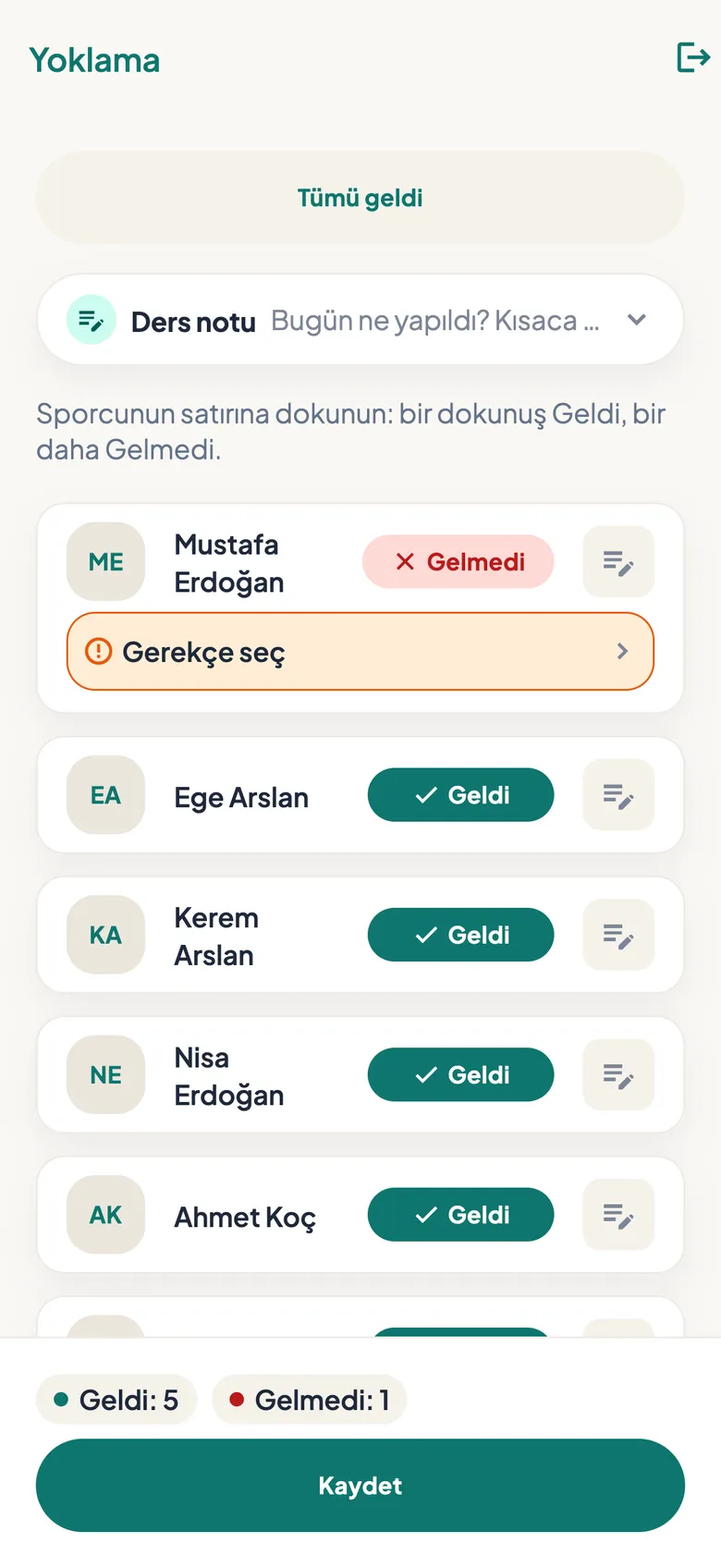
Attendance in the coach app: present / absent and lesson note
Attendance and lesson notes on the coach's phone.
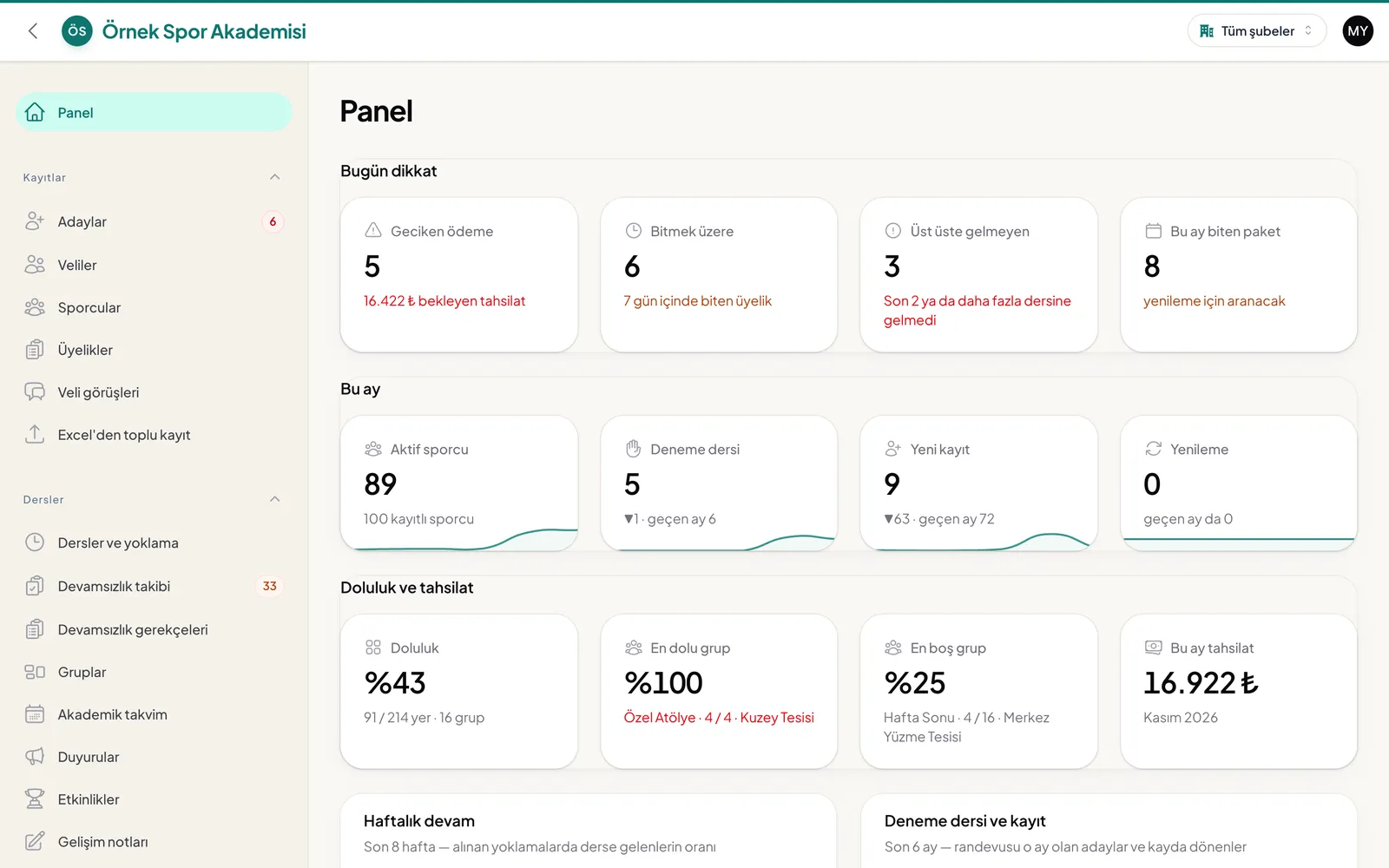
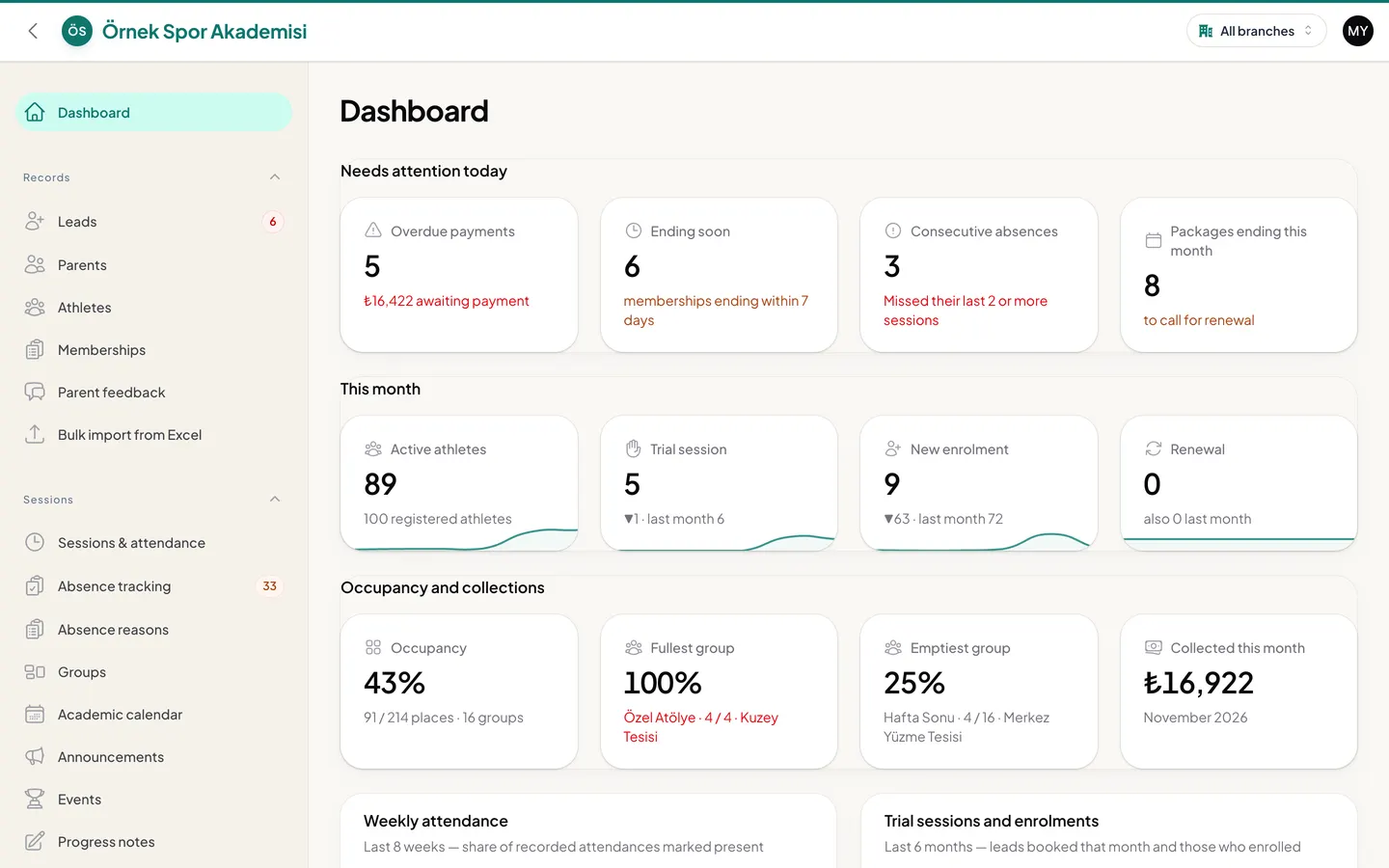
Tracking athletes, payments and collections from the admin panel.

The interface shown is in Turkish; values are illustrative.

Tour the app right here, step by step

The manager's panel, the coach's phone and the parent's phone: a day's work in a short tour. Screens from the app in use, with sample data.

Screens from Academision itself; names and figures are samples.

Tour the app right here, step by step

Old habits, a new routine

The jobs that eat the most time in sports schools are always the same. What each one becomes in the app:

  1. Today: Attendance is on paper; at the end of the season nobody knows who came how much

    In the app: The coach marks it on the phone on the field; if there is no internet it waits on the phone and sends itself when the connection returns.

  2. Today: Membership fees are in a ledger, and you look for who is late by hand

    In the app: Pending and late payments are listed in the panel; the parent reports a transfer from the app and attaches the receipt.

  3. Today: The training time changed, and you call every parent one by one

    In the app: The announcement is written once and lands on the parent's phone as a notification. A reminder reaches the parent a day before the lesson; no parent has to call to ask whether there is a lesson tomorrow.

  4. Today: Parents keep asking about their child's progress

    In the app: Height-weight measurements and the term report card are on the parent's screen. When the report card is approved, the parent is notified.

Manager, coach and parent screens

Coaches take attendance on the field; parents keep track from their own phone. What each uses most:

For coaches

Sees today's sessions, takes attendance on the field, enters progress notes and measurements.

  • Today's sessions on the app's first screen
  • Attendance in a few taps, a reason for each absence
  • The absent athlete's parent gets a notification
  • Term notes, height and weight and report cards in one tab
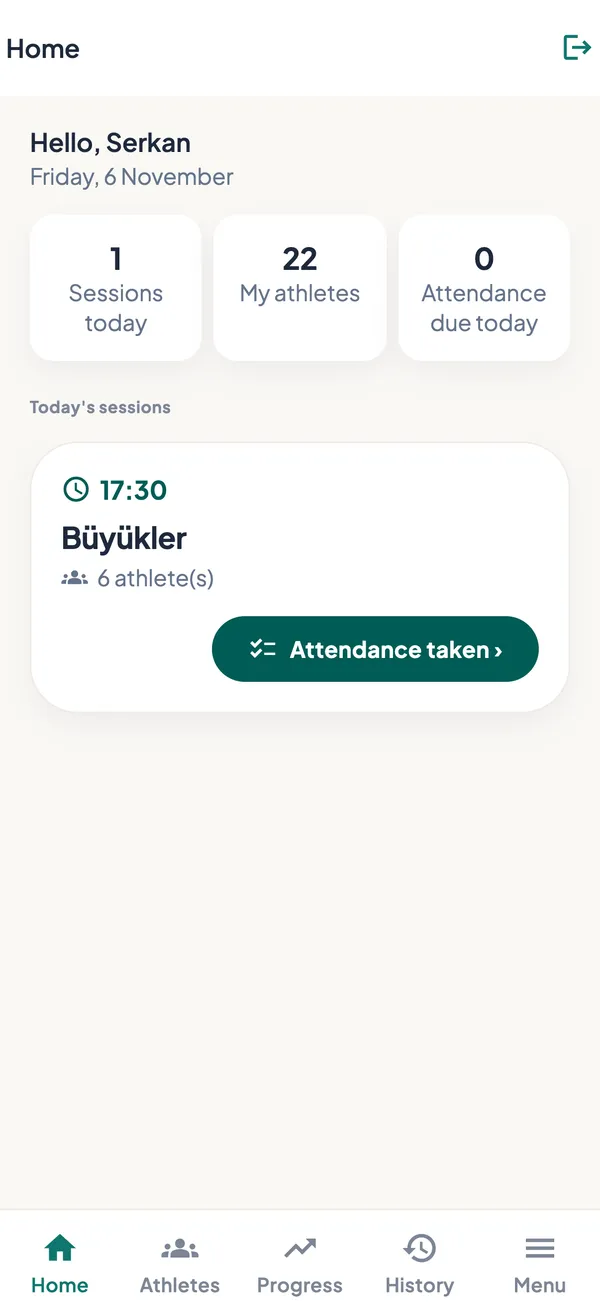
Home screen of the coach app: today's session, number of athletes and the attendance button

For parents

Follows their athlete's attendance, payments and progress from the phone; renews the package in the app.

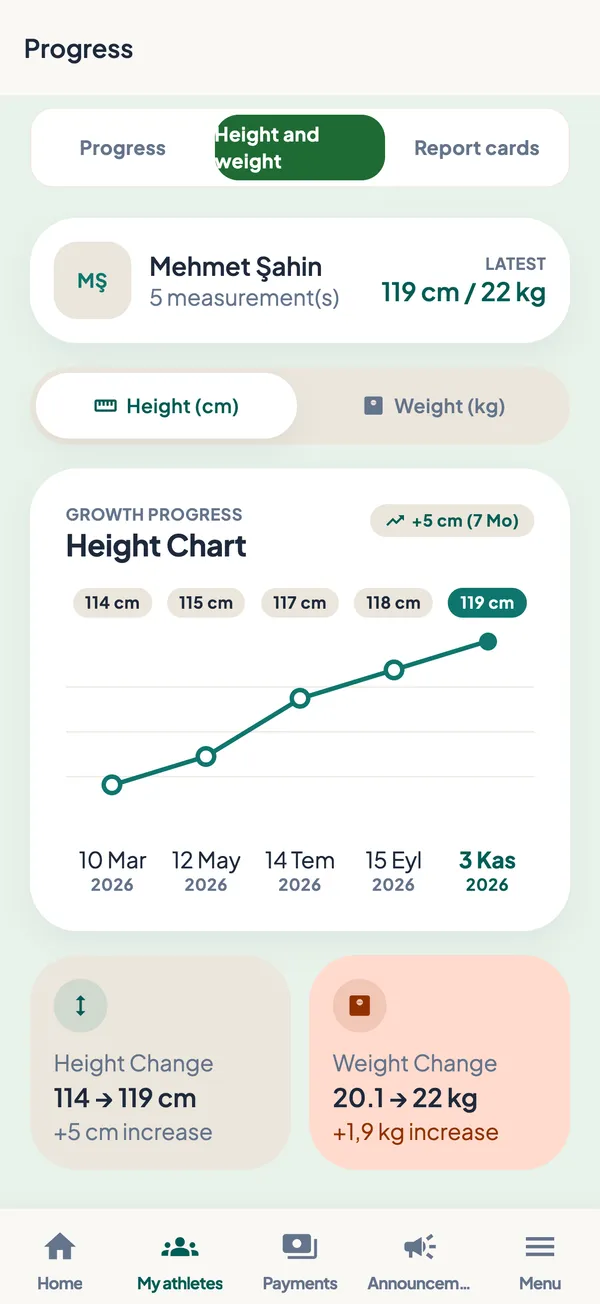
  • Height and weight progress on a chart
  • The school's announcements reach the phone
  • Payments, instalments and payment reminders
  • Renewing the package in the app
Height and weight in the parent app: measurement chart and latest measurement

A season, from registration to report card

An athlete's path in the school, from start to finish in the same system.

  1. Registration

    The parent chooses the group and package in the app and approves the contract. A trial lesson is also requested from here.

  2. Lesson schedule

    You enter the group's weekly schedule once and each week's lessons come from it; a reminder goes to the parent a day before.

  3. Attendance

    The coach marks it on the field. The reason for an absent athlete is written too.

  4. Membership fees

    Installments are tracked in the panel; the parent sees the payment history and receipt in the app.

  5. Progress and report card

    The coach fills in the measurements and the report card, the person in charge approves, and the parent is informed by notification.

  6. Renewal

    When the package is about to end, the parent renews it from the app; the group and branch stay the same.

Why we designed it this way

Rules that came out of the problems sports schools live through on the field.

  • A coach's note doesn't go out without approval

    The coach's note, report card and level suggestion first pass the approval of the person in charge. A wrong sentence never reaches the parent.

  • No notifications at night

    Reminders go during daytime hours. A parent isn't woken by the phone at midnight.

  • Everyone starts unmarked

    In attendance no child counts as "present" from the start; the coach marks one by one or with "All present".

  • Permissions are asked separately

    Health information, photo and commercial message permissions are in separate boxes, switched off by default. A parent who refuses can still register.

Frequently asked questions

There is no internet on the field. Can attendance still be taken?

Yes. Attendance is first saved on the coach's phone and sent when the connection returns; the coach does not enter it again. If something could not be sent, a warning appears on the coach's home screen.

Can a coach write directly to a parent?

Deliberately, no. The coach's progress note, level suggestion and report card first pass the approval of the person in charge, then go to the parent.

We have more than one branch. Can we see them all together?

Yes. In the panel you see all branches together or one by one. The branch manager, the front desk and the coach see only their own work.

Our student list is in Excel. Will we enter it all again?

No. Your existing list is transferred from Excel in bulk.

Do notifications go to the parent at night?

No. Reminders go during daytime hours; the lesson reminder arrives in the early evening a day before.

How are the parent's health information and photo permission obtained?

At registration each permission is asked with a separate box; health information, photo-video and commercial message permissions come switched off by default. Registration continues even if the parent refuses.

How much does it cost?

We give a quote according to the size of your school and the parts to be opened (such as report card, measurement, level path, events). Fill in the form and we will get back to you.

What happens after the form?

  1. Send your requestWrite your name, phone number and a few sentences about your business.
  2. Let us call youWe read your request and call you back; our questions are there to understand your business.
  3. Let's plan togetherWe look at your business together and talk about what would help and where to start.

Ask for a demo for your school

Request type

Your details are used only to get back to you.